

Documentation Index
Fetch the complete documentation index at: https://docs.formal.ai/llms.txt
Use this file to discover all available pages before exploring further.
Overview
Formal integrates with Business Intelligence applications to enable end-user identity propagation. This ensures that queries from BI tools are attributed to the actual end-user rather than a shared machine user, enabling accurate auditing and per-user policy enforcement.How It Works
When you set up a BI integration:- Sync: Formal Control Plane synchronizes with your BI application to fetch user identities
- Map: External IDs are automatically assigned to your Formal users
- Propagate: When BI tool users execute queries, their identity is passed to the Connector
- Enforce: Policies evaluate based on the end-user, not the BI tool’s machine user
The Connector automatically fetches user information from the Control Plane,
so no additional configuration is needed in your Connector deployment.
Supported BI Applications
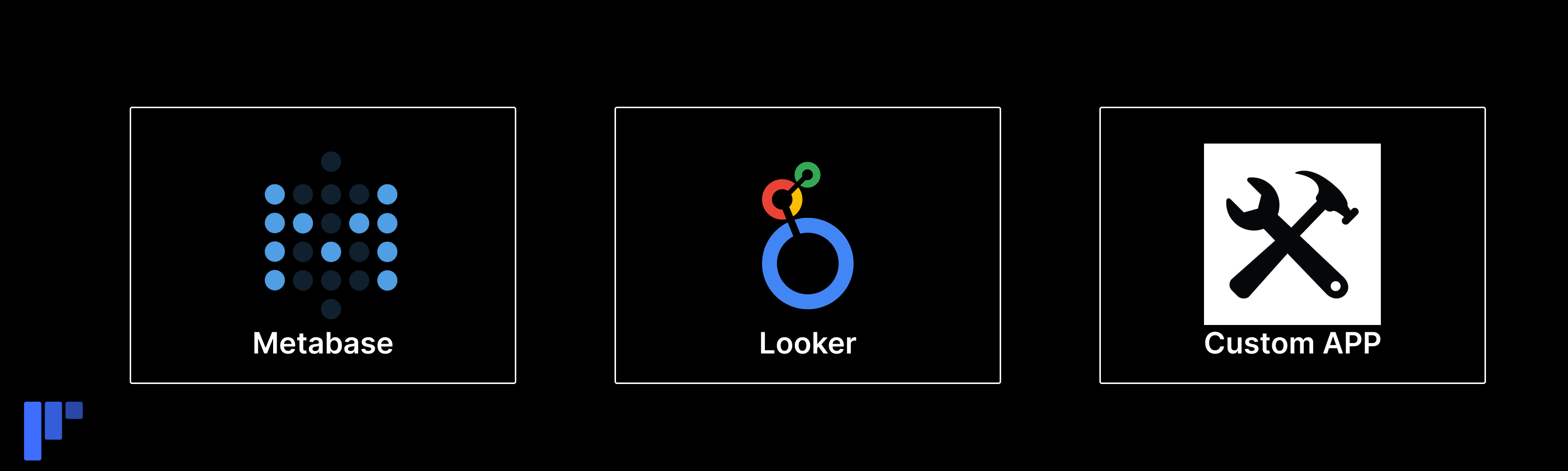
- Metabase
- Looker
- Omni
- Tableau
- Power BI
- Custom applications (via SQL commenter)
Setup
Metabase
Navigate to BI Integrations
Go to BI Applications in the
Formal console
Enter Credentials
- Server Hostname: Your Metabase instance URL - Admin Username: Metabase admin username - Admin Password: Metabase admin password
When connecting Metabase, the admin user will receive a “We’ve Noticed a New
Metabase Login” email alert from a location in Ireland (where Formal’s workers
run).
Terraform
Looker
Looker supports end-user identity propagation via JDBC connection parameters.
This configuration tells Looker to pass the end-user’s email in the connection string, which Formal extracts and uses for policy evaluation.
Omni
Omni supports connecting to Snowflake through the Formal Connector using a host override. Unlike other BI tools that embed end-user identity in SQL comments, Omni propagates identity at session login time via theQUERY_TAG session parameter containing the omniOrganizationUserId.
Connection Setup
Add a Snowflake Connection
In Omni, go to your connection settings and select Snowflake as the database type.
Choose Host & Port
Select the Host & port connection option instead of the default account identifier method.
Configure Host Override
Set the host override to The
account.<connector-hostname>, where <connector-hostname> is your Formal connector hostname. For example:account. prefix is required for the connector to correctly route Snowflake requests.Set Port
Set the port to match the listener port configured for your Snowflake resource on the connector (e.g.,
1443).Set Database and Warehouse
Specify the Database and Warehouse that match your Snowflake resource configuration.
Configure Authentication
If the native user on your Formal resource uses key-pair authentication (
SNOWFLAKE_JWT):- Select Key Pair Authentication as the authentication type
- Set the Username to your Formal machine user (e.g.,
idp:formal:machine:omni) - Add a keypair using the private key available via the Download Private Key button on the machine user details page in the Formal console
End-User Identity Setup
Create Omni Integration
In the Formal console, go to BI Integrations and create a new Omni integration.
Map External IDs
For each Omni user, add an external ID to their corresponding Formal user. The external ID value should match the user’s
omniOrganizationUserId in Omni, and the app type should be set to the Omni integration you created.Verify
Run a query through Omni and check Logs to confirm the end-user is correctly attributed.
Omni resolves end-user identity once per session at login time. All queries within that session are attributed to the resolved end-user. For more details on how this works at the Snowflake proxy level, see Snowflake End-User Identity Propagation.
Custom Applications
For internal applications or custom BI tools, use the formal-sqlcommenter library to propagate end-user identity.Python/Django
Install the package:Configuring External IDs
External IDs map end-users in external systems to Formal users.Add External ID
In the Formal user details page, add the user’s ID from the BI tool For
example, if Katie’s Looker user ID is
12345, add 12345 as an external ID
to Katie’s Formal userVerify
Check Logs to confirm queries are
attributed to the correct end-user
Automatic Sync
For Metabase and other integrated BI tools, Formal automatically:- Fetches user lists from the BI application
- Matches them to Formal users by email
- Assigns external IDs
Policy Examples
End-User Access Control
Per-User Data Masking
Audit BI Tool Access
Monitoring
View End-User Attribution
- Navigate to Logs
- Filter by machine user (BI tool)
- Check “End User” column to see attributed end-users
- Verify queries are attributed correctly
Session Details
In Sessions, you’ll see:- User: Machine user (BI tool)
- End-User: Actual human user in the BI tool
- Queries: Full query history with end-user attribution
Troubleshooting
Queries not attributed to end-users
Queries not attributed to end-users
Possible causes:
- BI integration not set up
- External IDs not mapped
- BI tool not passing end-user information
- Verify BI integration is active in Formal console
- Check Formal user has external ID matching BI tool user ID
- For Looker, verify JDBC parameters are configured
- Review Connector logs for end-user extraction errors
Metabase sync not working
Metabase sync not working
Possible causes:
- Incorrect admin credentials
- IP allow-list blocking Formal workers
- Metabase instance not reachable
- Verify admin credentials are correct
- Allow-list Formal worker IPs (see above)
- Check Metabase logs for authentication attempts
- Ensure Metabase instance is publicly accessible or VPN-accessible by Formal
Policies not evaluating for end-users
Policies not evaluating for end-users
Possible causes:
- Policy references
input.userinstead ofinput.end_user - End-user not in expected groups
- Update policies to use
input.end_userfor BI tool queries - Verify end-user’s group memberships in Formal console
- Test policy in dry-run mode and review logs
Best Practices
Always Use End-User Policies
Always Use End-User Policies
For BI tools, write policies that evaluate
input.end_user attributes, not
input.user (which is the machine user).Implement Row-Level Security
Implement Row-Level Security
Use end-user attributes to filter results, ensuring each BI user only sees
data they’re authorized to access.
Audit BI Access
Audit BI Access
Regularly review logs to ensure end-user attribution is working and no queries
are misattributed.
Sync Regularly
Sync Regularly
For integrated BI tools, Formal syncs user lists automatically. For custom
apps, update external IDs when users are added/removed.
Next Steps
Configure External IDs
Map BI users to Formal users
Write Policies
Create end-user-based policies
View Logs
Monitor end-user queries